







Cyber Safety Tips To Survive the Hackers and Scammers
Navigating the internet can be a trouble-filled journey. Bad actors intent on exploiting uninformed users are constantly lurking behind emails, websites, and social media invites. Even your Wi-Fi...


Navigating the internet can be a trouble-filled journey. Bad actors intent on exploiting uninformed users are constantly lurking behind emails, websites, and social media invites. Even your Wi-Fi router and those now-ubiquitous QR codes can be danger points. Add to that, the never-ending virus and malware threats.
Table Of Content
- 1. QR Codes, Handy but Potentially Harmful
- 2. Avoid ‘Unsubscribe’ Email Scams
- PLACE YOUR ADVERT HERE
- 3. Lockout Facebook Hackers
- Enable two-factor authentication (2FA) to require your login approval on a separate device.
- Activate these two additional features to block Facebook hackers
- 4. Secure Your Wi-Fi Router
- Apply these steps to better secure your home/office Wi-Fi network
- FAQ How do I create a password that is hard to hack?
- 5. Beware of Phony Tech Support Schemes
- Follow these best practices to protect yourself from tech support fraud
Computer and mobile device users are often unaware of the danger zones. However, the internet need not be a constant trip through the badlands. What it takes to stay protected online is knowing what to avoid and how to protect yourself.
Here are five things in your control to help keep your digital activity safe.
1. QR Codes, Handy but Potentially Harmful

These postage-size image links to websites can be convenient. Just point your smartphone camera at it and instantly go to a website, tech support location, discount offer on a purchase, or restaurant menu.
However, QR codes can also take you to a nefarious place where malware or worse is waiting. QR codes can be programmed to link to anything, putting your privacy and security at big risk.
Think before you scan a QR code. If the code is displayed on a website or printed document you trust, it is probably a safe. If not, or you are unsure, check it out.
You can download reputable QR reader apps that will perform a security check on the endpoint of the QR code’s destination. One such safety tool I use is the Trend Micro QR Scanner app, available for Android and iOS.
2. Avoid ‘Unsubscribe’ Email Scams
This is a popular ongoing scam that has a high success rate for hackers. Potential victims get an email for a product offer or other business invitation. The opt-out action step is enticing, looks familiar, and sounds reasonable. “Don’t want to receive our emails? Click here to unsubscribe,” it beckons.
Sometimes the annoying repeat emails ask if you want to unsubscribe from future emails. Some even offer you a link to cancel a subscription.
Do not select any options. Clicking on the links or replying confirms your active address.
Never input your email address in the “unsubscribe me” field, either. More senders will follow.
PLACE YOUR ADVERT HERE
A better solution to deleting the unwanted email, especially from an unknown sender, is to mark it as spam. That moves it to the spam folder. You also can add that sender to your email program’s block list, or set up a filter to automatically delete it before it reaches your inbox.
Finally, check out the free service Unroll.me. There you can unsubscribe from unwanted emails, keep others, or get the rest in a daily digest.
3. Lockout Facebook Hackers
Other villains try to usurp Facebook accounts. Hackers can change your password, email address, phone number, and even add a security code to lock you out of the pirated account. Before trouble happens, be proactive to prevent these situations. Facebook provides the following security settings you need to enable.
Enable two-factor authentication (2FA) to require your login approval on a separate device.
To do this, log in to your Facebook account on a desktop computer and navigate to Settings & privacy. Next, select Security and login. Then scroll down and edit the Two-factor authentication option.
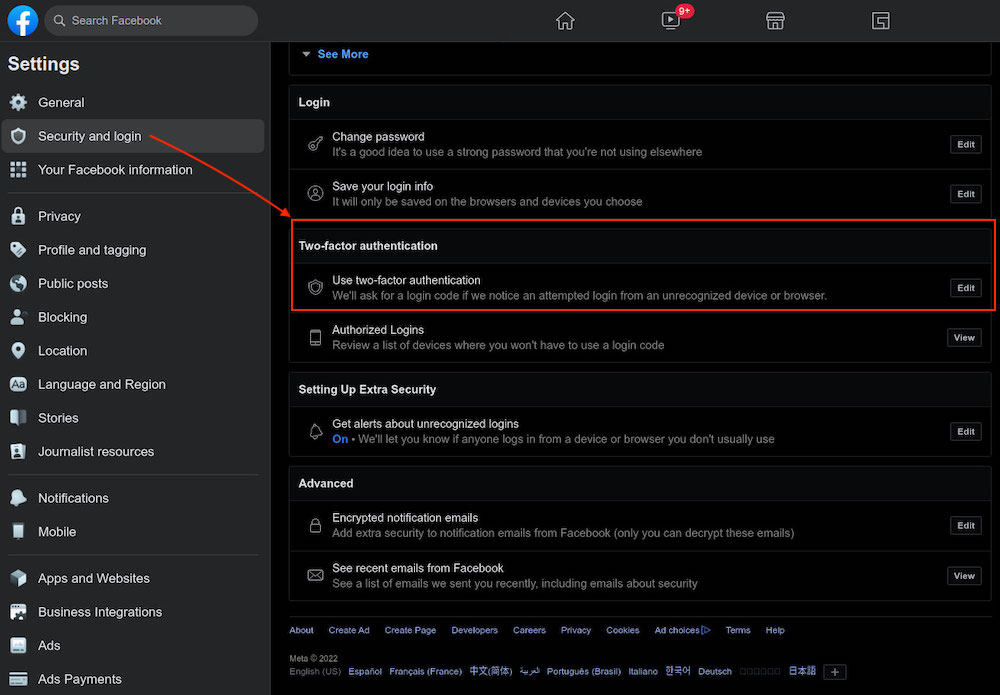
To complete this step, you must enter your Facebook password.
Activate these two additional features to block Facebook hackers:
- Turn on the Code Generator feature in the Facebook mobile app
- Set up login alerts to your email
First, open the Facebook mobile app and tap the magnifying glass, enter the term “code generator” and tap the search icon. Tap the result Code Generator to navigate to the next screen, then tap the button “Turn On Code Generator” to get a 6-digit code that changes every 30 seconds. You must enter this code within that short time span to login to your account on another device.
Next, set up alerts about unrecognized logins. You can do this from either a computer or a mobile device.
- Computer: go to Settings & privacy > Settings > Security and login > Get alerts about unrecognized logins (see above screenshot).
- Mobile app: tap Menu > Settings & privacy gear icon > Settings. Then tap Password and security. Next, scroll to Setting Up Extra Security > Get alerts about unrecognized logins > tap to select your preferred notification methods.
If you have trouble logging in, head to facebook.com/login/identify to fix the problem. If you are unable to login there, go to this Facebook help page instead and fill out the request form for Facebook to review your account. You will need to answer a few security questions to prove your identity. This might include providing proof of ID like a photo of a driver’s license.
4. Secure Your Wi-Fi Router
The flood of people working remotely since Covid put home Wi-Fi routers squarely in hackers’ target sights. As a result, malware attacks on home Wi-Fi networks are on the rise because residential setups often lack the level of security and protection that is found on enterprise networks.
One nasty attack tool, dubbed ZuoRAT, is a remote access trojan designed to hack into small office/home office routers. It can affect macOS, Windows, and Linux computers.
With it, hackers can collect your data and hijack any sites you visit while on your network. One of ZuroRAT’s worst factors is that once your router is infected, it can infect other routers to continue spreading the hackers’ access.
Apply these steps to better secure your home/office Wi-Fi network:
- Be sure to enable WPA2 or WPA3 encryption on your routers. The default factory setting is often the outdated WEP (Wired Equivalent Privacy) security protocol, or none is set at all. Check the user manual or the router manufacturer’s website for directions.
- Change your router’s SSID (Service Set Identifier) and password. This is critical. Typically, the factory setting shows the router’s make or model and has a universal password such as 0000 or 1234. Rename the SSID to not easily identify you. Avoid names that include, for example, all or parts of your name or address. Make sure the password is very strong.
- For added protection, change the router’s password regularly. Yes, this is a big inconvenience because you also must update the password on all your devices that use that Wi-Fi network. But considering it will keep out hackers, it is well worth the hassle.
- Keep the router’s firmware updated. Check the user manual and/or the manufacturer’s website for steps to download the latest updates.
FAQ
How do I create a password that is hard to hack?
The strongest passwords have all these characteristics:
- Lengthy — the more characters, the better
- A mix of upper-case and lower-case letters, numerals, and special characters
- No dictionary words or anything related to personal information
Pro Tip: When using a password generator, always change at least a few characters from the random result to create your final credentials.
5. Beware of Phony Tech Support Schemes
Some fraudsters call on the phone to tell you they are a tech support division working for a well-known computer or software company. The caller claims to be calling in response to an alert from your computer of a virus detection or malware on your device. The scammer offers to fix it if you simply provide your credit card number.
Hang up. Your computer is not infected.
A modified version of this tech support scam is a text or email claiming the same details. Do not reply. Just delete the message and move on.
You might also be browsing the web when a pop-up message crashes onto your screen. I have received very loud audio alerts warning me that my computer is at risk and not to turn it off without responding for help.
In all these cases, the scammers want to scare you to comply with their instructions. The action they want you to take to let them fix the alleged problem will hurt your bank account and possibly let them transmit real infections.
Follow these best practices to protect yourself from tech support fraud:
- Never let a scammer con you into going to a website or clicking on a link.
- Never agree to a remote connection by the so-called tech support agent that initiated contact to you.
- Never give payment information in exchange for technical support you did not initiate. Legitimate tech companies will not call you and ask for payment to fix a problem they claim to have discovered on your device.
If you suspect your computer has a virus or malware problem, initiate contact with a repair center yourself. You probably already have a support plan or active warranty from where you purchased the computer. If you have not contacted a tech support company, the call or message you received is illegitimate.


No Comment! Be the first one.